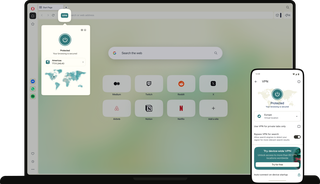
Free VPN
When you connect to a public network, Opera’s VPN can be set to turn on automatically, so you can stay protected wherever inspiration strikes. See more
Start anywhere. Fast, free, and private.
Start fast anywhere
When an idea hits on the go, you shouldn’t have to think twice about whether the network is safe. Free VPN is built into Opera on your phone and laptop, with no account or extra apps needed.
On desktop, Free VPN can be set to automatically connect on public networks to encrypt the connection and keep you protected.

Browse without limits
If you’re in the middle of something important, you shouldn’t have to waste time thinking about data usage, or hit the brakes on your privacy.
Opera VPN is completely free, forever, with no bandwidth limits, data caps, or annoying ads. Browse as much as you want, without worrying about running out.

Get even more privacy
Whatever ideas and goals you pursue online, you don’t have to be worried about being followed by targeted ads, or wonder if you’re being tracked.
While Free VPN masks your IP and hides visited sites, Opera’s built-in Tracker Blocker and Ad Blocker take care of the rest for even more privacy online.

No logs, strong encryption
With the industry standard AES-256 encryption for trusted data protection, Opera’s Free VPN is built with high privacy standards.
Its no-log policy is backed by independent audit, ensuring your activity is never recorded.
Multiple locations
Opera’s Free VPN gives you three real (not virtual) locations to choose from: the U.S., Singapore, and the Netherlands.
If you don’t choose one, the fastest location is selected automatically for smooth browsing.
Beginner-friendly
You don’t need to be tech-savvy to get started. Opera’s Free VPN is designed for simple, everyday privacy for everyone.
No extensions, no account, no ads, and no setup. Just turn it on with one click in the address bar.
Start faster anywhere
Online work is often done on public Wi-Fi in cafes, libraries, airports, co-working spaces, and client sites. When you are building something, your ideas, research, briefs, and work need to stay confidential.
Free VPN is already part of Opera, so there’s no app to download or extension to install. Opera can be set to activate Free VPN automatically, so you don’t even have to think about it.

Keep sensitive data private
Checking a client dashboard from a hotel or sending an invoice from a coworking space should only be done when running a trusted VPN.
Opera’s Free VPN uses AES-256 encryption and has a strict no-log policy. Its privacy practices are aligned with GDPR and independently audited by Deloitte.

Make your own decisions
When you’re starting a new job, moving to a new city, or preparing for your first baby, there’s a lot to figure out. You don’t need the web turning every new interest into another personalized ad.
Free VPN masks your IP and encrypts your data, while Ad Blocker and Tracker Blocker help reduce the tracking and personalized ads used to tailor what you see.


How to use a Opera’s Free VPN
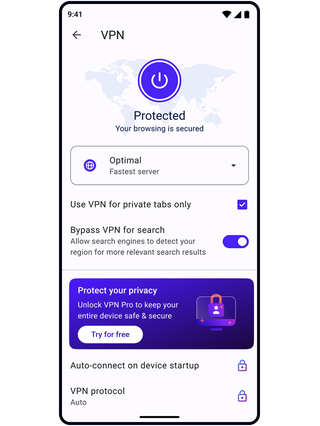
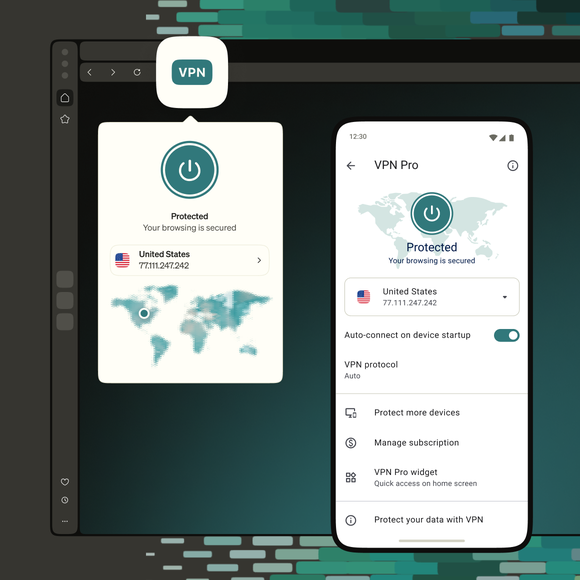
On mobile, you can enable VPN in Settings. On desktop, click the VPN icon to the left of the address bar, then turn on VPN.
Select America, Asia, or Europe depending on where you want to browse from. Or you can leave it on the default Optimal location, which selects the fastest location for your connection.
Toggle on the option to automatically connect in Settings. Opera will connect to the VPN in the background whenever you join an open public Wi-Fi network.


Why use a built-in browser VPN instead of a separate app?
Opera is the only browser with a completely free, built-in, unlimited VPN that requires zero setup and no account. Instead of paying for an external subscription, installing third-party extensions, or running heavy background software, protection is built directly into your browser from the very first tab.
When should I use Free VPN?
Turn it on whenever connecting to shared networks in cafés, airports, hotels, and libraries, or while traveling abroad. It’s especially useful when opening client deliverables, managing personal finances, researching unannounced projects, or exploring without local network restrictions.
Why is Opera’s VPN free? Is there a catch?
There is no catch, no data cap, and no hidden bill. Opera’s business is sustained through search engine partnerships, browser features, and paid subscriptions like VPN Pro. This lets Opera ensure that privacy can remain completely free, unlimited, and ad-free.
Does Opera’s Free VPN have data caps or bandwidth limits?
No. Opera’s Free VPN has uncapped bandwidth and zero data-usage restrictions. Browse, stream, and download for as long as needed with no speed throttling or sudden paywalls.
What should I consider before choosing a VPN?
Running VPN servers costs real money. When an unfamiliar third party offers a "free" service, it is important to ask how they pay for bandwidth, whether their no-log policy has survived an external audit, and why they require an account. If this information isn’t clearly laid out, treat that offer with caution.
Opera’s approach is transparent. Its built-in VPN is funded by search partnerships, verified by independent audits from Deloitte and Cure53, and engineered entirely without accounts or data collection.
Do I need to create an account or install an extension?
No. Free VPN is built directly into Opera’s browser on both desktop and mobile. There’s no need to register, share an email address, create a password, or manage third-party extensions. Simply click the VPN badge beside the address bar and turn it on, and your connection is protected immediately.
Does Opera’s VPN keep logs of my browsing activity?
No. Opera’s Free VPN operates under a strict, independently verified no-log policy. It does not collect, store, or process your browsing activity, DNS queries, or originating IP addresses. In fact, a data-logging function was never coded into the VPN software in the first place.
This no-log infrastructure is independently audited by Deloitte, and the security code has also been tested by Berlin-based cybersecurity firm Cure53.
Opera also publishes a periodic Transparency Report detailing requests for user data and how we respond to them. Furthermore, because Opera is headquartered in Norway, the company operates under strict European GDPR rules. Even if authorities request user data, there is nothing to provide because the relevant browsing data does not exist.
Is Free VPN available on both computer and phone?
Yes. Free VPN is built into Opera on both desktop (Windows, macOS, Linux) and mobile (iOS and Android).
Will turning on Opera Free VPN slow down my internet connection?
Because Free VPN is integrated natively into the browser rather than running through an external background application, system overhead is minimal. Traffic routes through three real, physical (not virtual) server hubs: the United States (Ashburn), Europe (Amsterdam, Netherlands), and Asia (Singapore).
Selecting Optimal Location automatically connects to the node with the lowest latency, keeping any speed change down to a matter of milliseconds.
How does Free VPN give me privacy on public Wi-Fi?
Public Wi-Fi in cafés, airports, and hotels makes it possible to work anywhere, but shared networks can be compromised. Free VPN creates an encrypted AES-256 tunnel between the browser and Opera's physical servers, keeping client drafts, research, and personal accounts strictly between you and your screen.
You can also set the VPN to always connect on public Wi-Fi in Settings, and Opera will automatically turn it on when you join an unsecured public network.
Does Opera block targeted ads and trackers?
Yes, alongside Free VPN, Opera includes a native Ad Blocker and Tracker Blocker. While the VPN masks your IP and encrypts traffic, the built-in blockers stop tracking scripts and remove intrusive ads before they appear, keeping searches and research private.
What’s the difference between Free VPN and VPN Pro?
Free VPN protects all activity inside the Opera browser with unlimited bandwidth and zero account requirements, making it ideal for everyday writing, research, and media.
VPN Pro is an upgrade that expands that protection across the entire device, covering all applications, games, and file sharing on up to six devices simultaneously. It unlocks 48 global country regions and runs on the open-source, battery-efficient Lightway protocol
Why can’t I connect to Free VPN?
If the VPN badge fails to connect, third-party antivirus software or local network firewalls may be blocking secure VPN protocols. Check system security settings to ensure Opera has permission to establish secure connections, or switch to a different server location in the VPN menu.

The only browser with a free, built-in, unlimited and accountless VPN.
Ready to start something new?