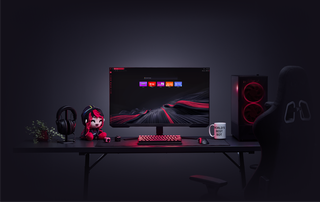
Wallpaper Animasi di GX
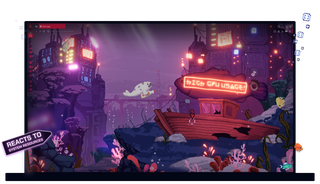
Wallpaper Animasi di Opera GX
Dinamis, interaktif, dan informatif. Wallpaper Animasi adalah segalanya kecuali membosankan.
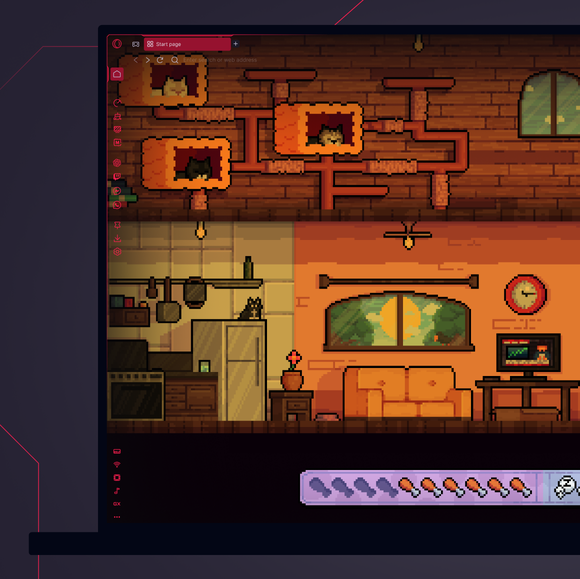
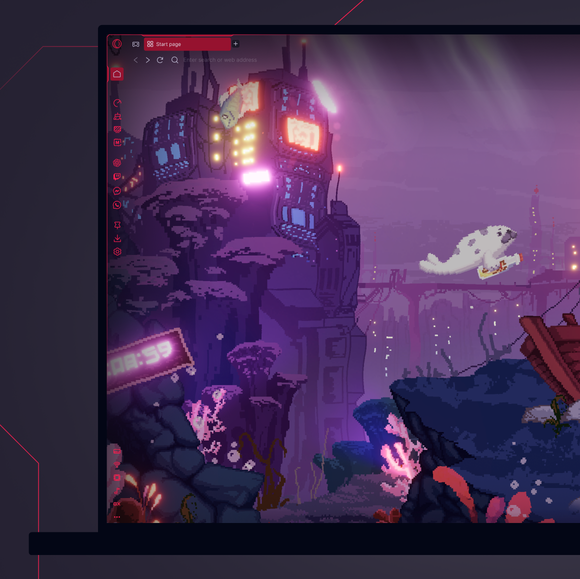
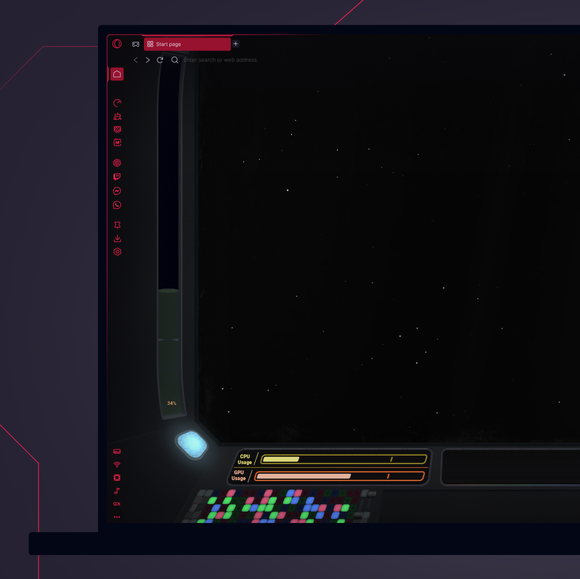
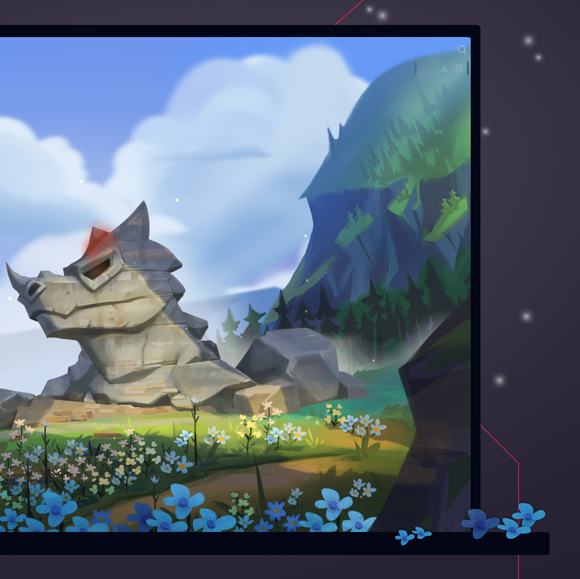
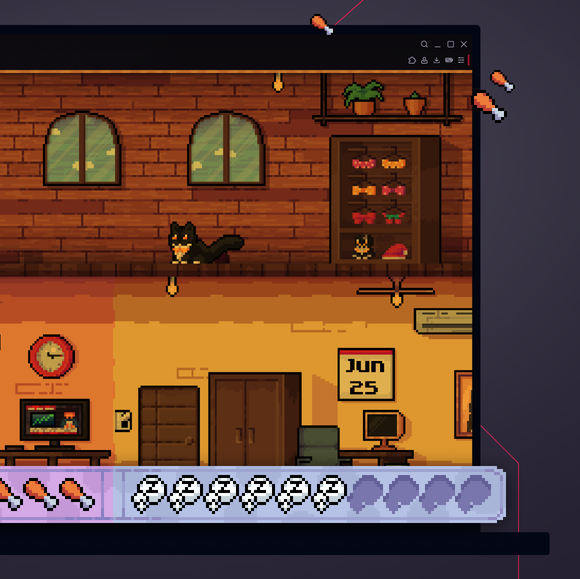
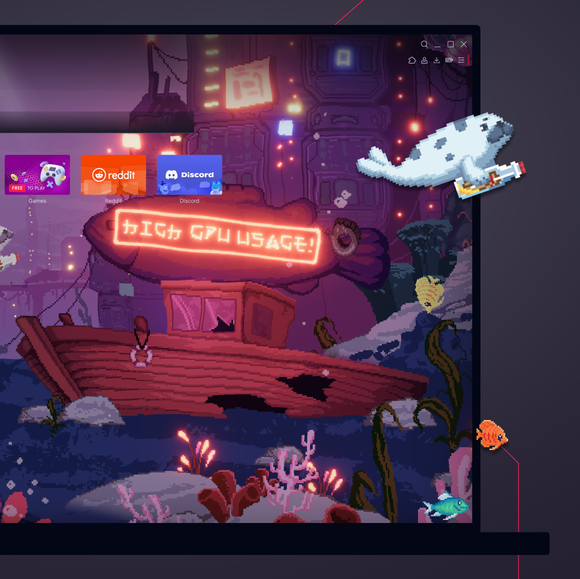
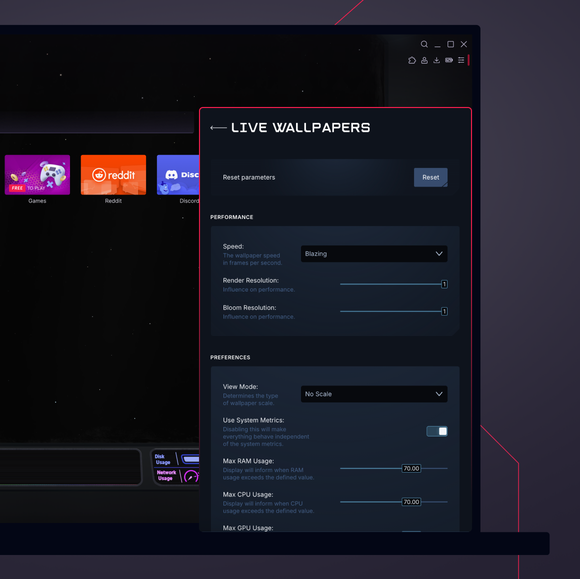
Singkirkan yang membosankan. Suntikkan kehidupan ke desktop Anda.
Bagaimana cara mengubah wallpaper di Opera GX?
To change wallpapers in Opera GX, open the browser and go to the Easy Setup menu in the top-right corner. Scroll down to the Wallpapers section and select Custom to browse through the available options. Select the one you like, and your browser background will instantly update with your chosen wallpaper.
Bagaimana cara mendapatkan wallpaper animasi di Opera GX?
To get animated wallpapers in Opera GX, head to the Easy Setup menu, toggle on Wallpapers, and select Custom. Select the one that catches your eye, or hit Get more to browse the GX Store for more unique and free animated wallpapers from both Opera GX and GX users.
Bagaimana cara menambahkan wallpaper khusus di Opera GX?
To add custom wallpapers to Opera GX, go to the Easy Setup menu and toggle on Wallpapers. From there, select Custom and click on the option to Add your wallpaper. You can then choose an image file from your computer to use as your new custom wallpaper.
Di mana wallpaper Opera GX disimpan?
Opera GX wallpapers are stored within the browser itself. Custom wallpapers that you add are saved locally on your device, typically in your user files or downloads folder. The exact location may vary based on your operating system and where you originally saved the image file. If you're looking for Live Wallpapers, you can browse and download them directly from the GX.Store under Mods > Live Wallpaper.
Mod apa lagi yang bisa saya tambahkan ke browser Opera GX saya?
Selain wallpaper GX yang telah dimodifikasi, ada banyak sekali mod lain yang dapat Anda tambahkan ke peramban GX. Tim GX dan komunitas GX secara luas menambahkan lebih banyak lagi setiap hari, seperti:
Anda berhak untuk browser yang lebih baik