Browser AI in GX
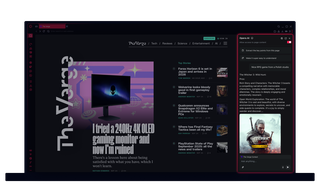
Browser AI in Opera GX
ChatGPT or Opera AI? Why not all? Fast forward to facts, and make your browser your own think tank.
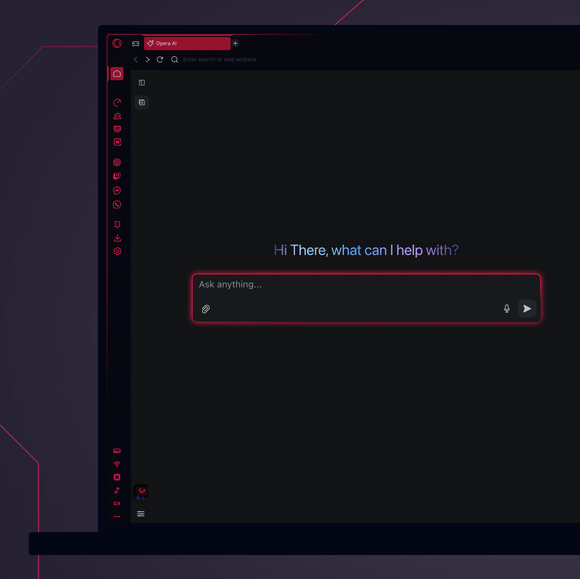
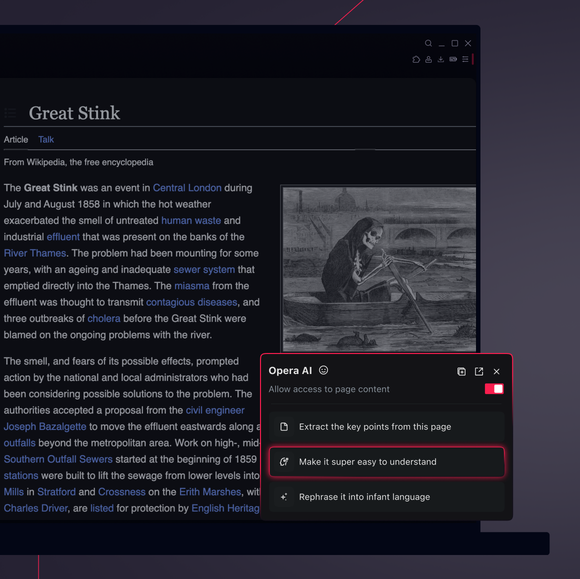
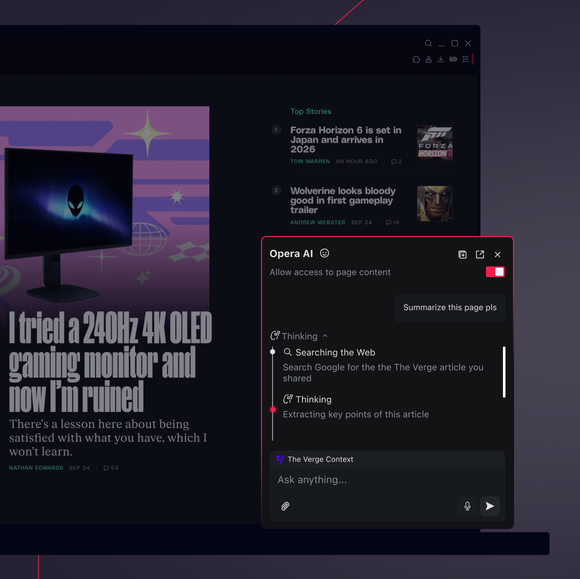
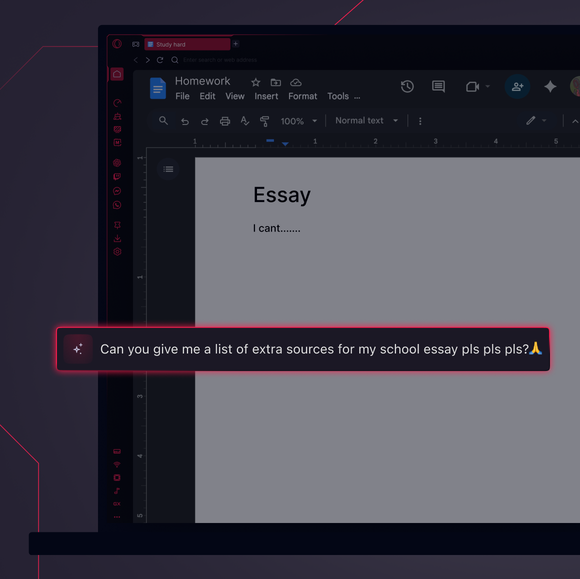
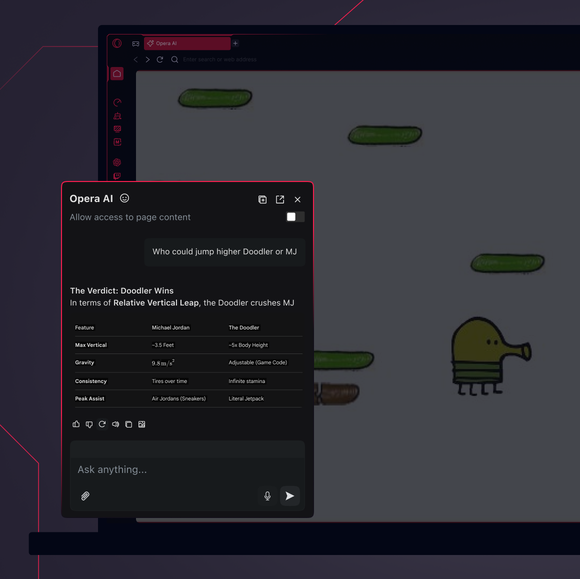

AI chat for free in Opera GX
How do I access AI in Opera GX?
First off, grab Opera GX for your desktop. Opera AI and ChatGPT are already built in and ready to use.
How do I start using Opera AI in Opera GX?
Click the Ask AI button on the right side of your toolbar in Opera GX. If you don’t see the button, you can toggle it on in Easy Setup or in Settings (Alt+P).
You can use Opera AI without logging in, with minor limits to chat history and image generation. To avoid the limits, just log in with your Opera GX account, or create one for free on the sign-in page. Either way, Opera’s browser AI is always a click away in your toolbar.
How do I start using ChatGPT in Opera GX?
Hit the ChatGPT icon on the sidebar in Opera GX. If it’s hiding from you, click the three dots at the bottom and select ChatGPT.
When you open ChatGPT for the first time, you’ll need to log in or sign up. Got an account? Log in. If not, just sign up. Once you’re set, you can enjoy the ChatGPT anytime from the sidebar in Opera GX. Go get ‘em.
You deserve a better browser