
ChatSonic in GX


ChatSonic in Opera GX
It’s time to level up. ChatSonic in Opera GX isn’t just a feature – it’s a whole mood.

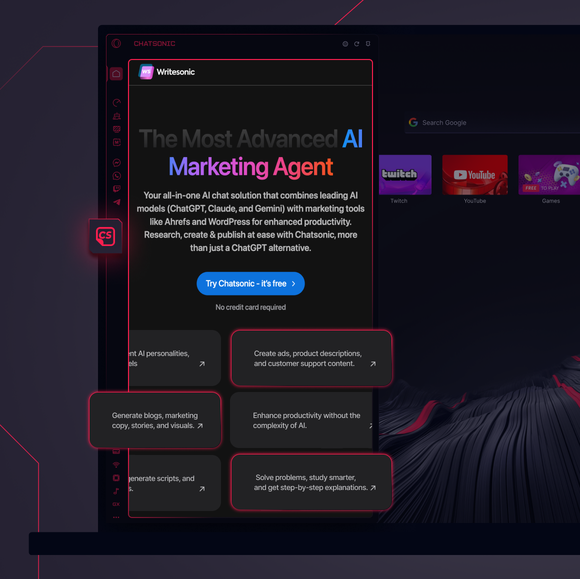
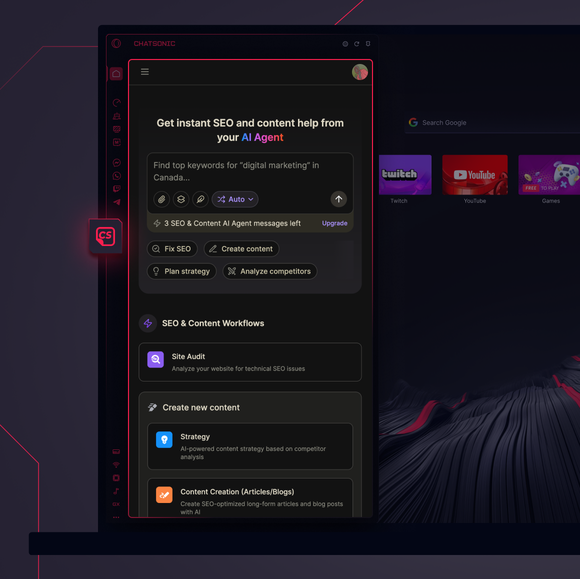
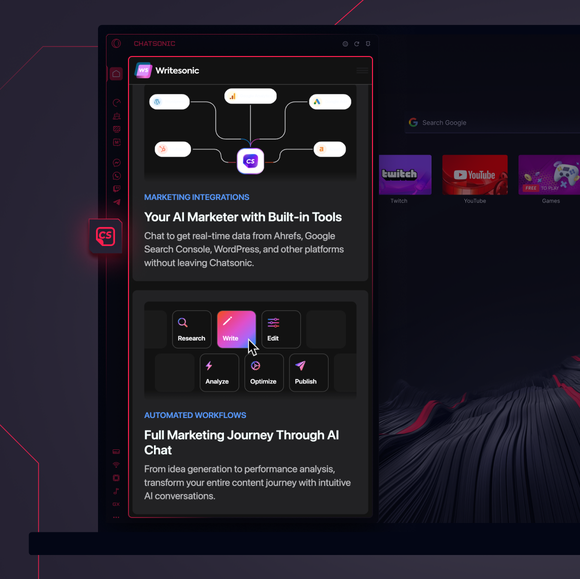


It’s right there in the sidebar.
How do I add ChatSonic to Opera GX’s sidebar?
To add ChatSonic to your Opera GX sidebar just click the three dots at the bottom of your sidebar and enable ChatSonic there.
How do I log into ChatSonic in Opera GX?
To log into ChatSonic in Opera GX simply click the ChatSonic icon in the sidebar and enter your account details, or sign up if you’re new. Once logged in, you’ll instantly access all AI features synced to your account.
Can I use ChatSonic across different devices?
Yes, ChatSonic syncs across devices. Whether you’re using Opera GX on your desktop, your phone, or tablet, your AI assistant and all its features are just a login away.
Can I use ChatSonic without an app?
Definitely. ChatSonic is integrated directly into Opera GX, so there’s no need for a standalone app. It’s accessible right from the sidebar, ready to assist without the hassle of extra downloads.
Will I have access to my ChatSonic chat history?
Yes, your ChatSonic chat history is saved to your account. As long as you’re logged in, you can revisit past conversations and pick up right where you left off – no need to start from scratch.
You deserve a better browser

