
Keyboard Sounds in GX


Keyboard sounds in Opera GX
From sci-fi clicks to silent mode.



Type it loud. Or don’t.
Where can I find different keyboard sounds?
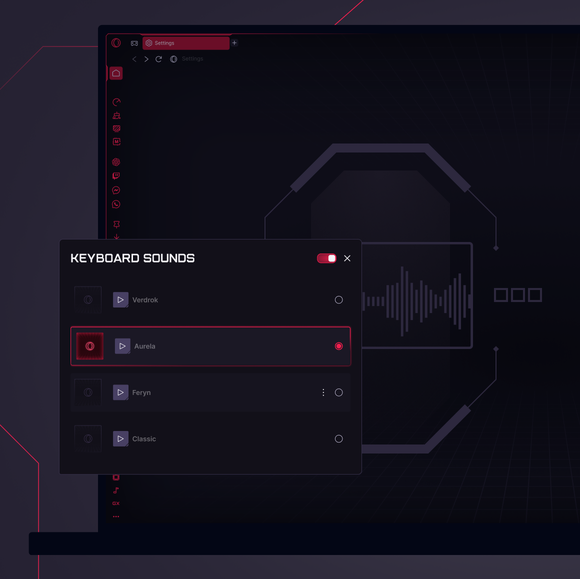
Different keyboard sounds are built into Opera GX. Just head to Settings > Mods to explore preloaded options. For even more, check out custom sound packs in the GX Store.
How do I change my keyboard sounds?
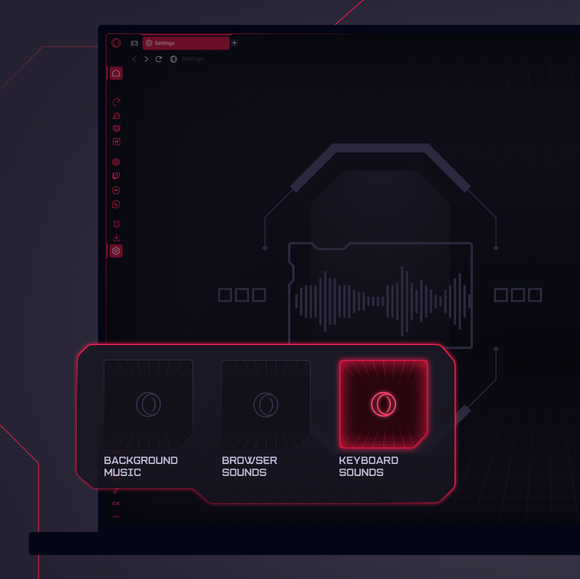
To change your keyboard sounds in Opera GX, go to Settings and find the Keyboard Sounds option under Mods. From there, browse the available sound packs and choose one that fits your style. You can also adjust the volume and effects to match your typing feel.
Pro tip: pair your custom sounds with GX mods, shaders, and wallpapers for a fully immersive setup.
Can I make custom keyboard sounds in Opera GX?
Yes, you can create custom keyboard sounds in Opera GX. Built for personalization, the browser lets you import your own audio files and adjust volume, intensity, and effects. It’s a flexible way to craft a typing experience that’s truly yours.
What other customization features can I use in Opera GX?
Opera GX offers a variety of customization options through GX Mods. You can personalize your browsing experience with Background Music, Live Wallpapers, and Shaders - all designed to make your browser feel uniquely yours.
How do I turn off keyboard sounds in Opera GX?
If you prefer silent typing, you can easily turn off keyboard sounds in Opera GX. Just go to Settings > Mods > Keyboard Sounds and disable or mute them to match your environment.
You deserve a better browser
