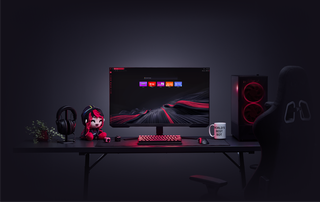
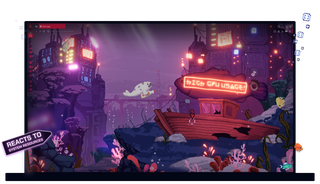
Opera GX의 라이브 배경화면
역동적이고 인터랙티브하며 유익한 정보를 제공합니다. 라이브 배경화면은 지루한 것만 빼고 모든 것을 제공합니다.
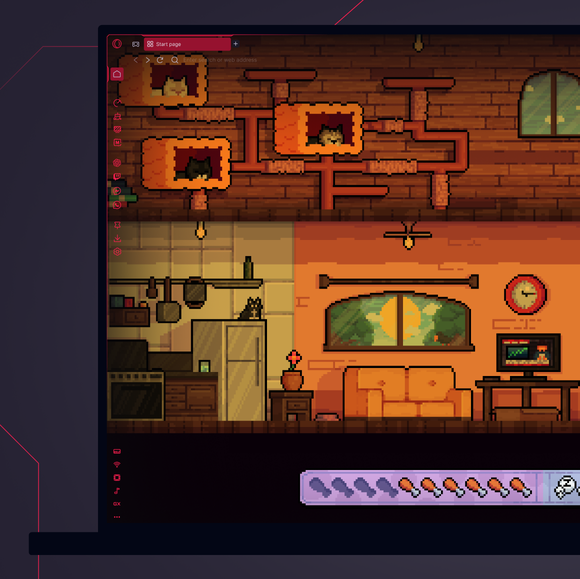
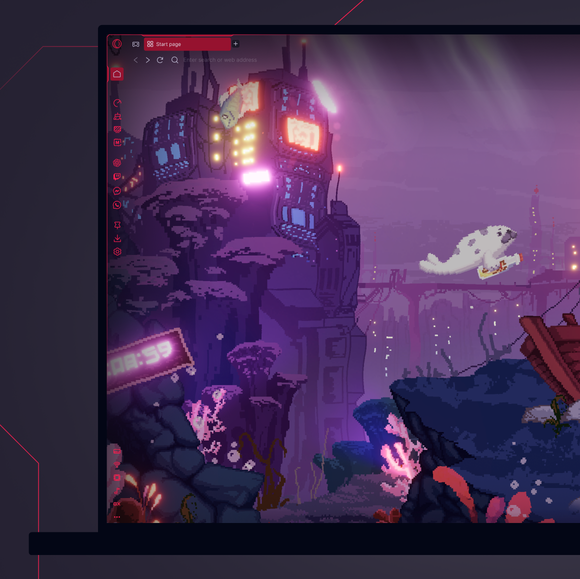
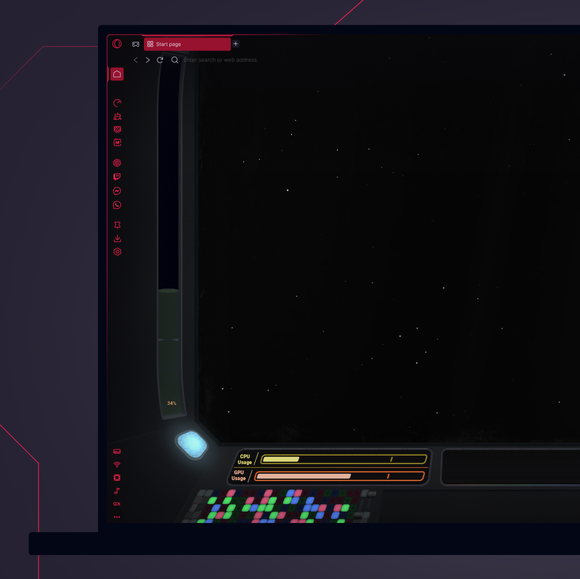
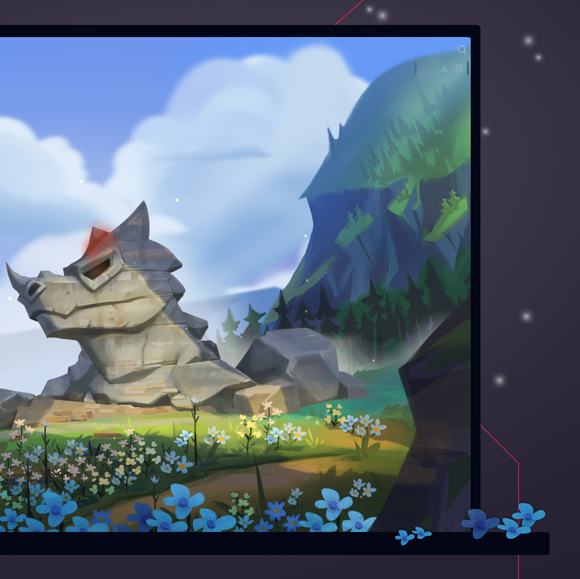
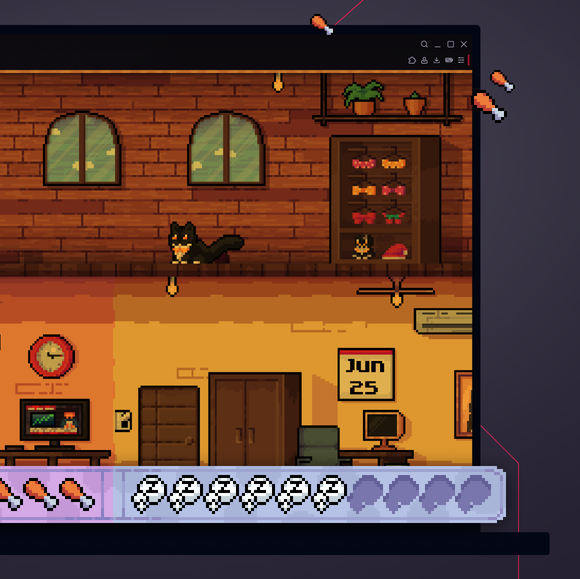
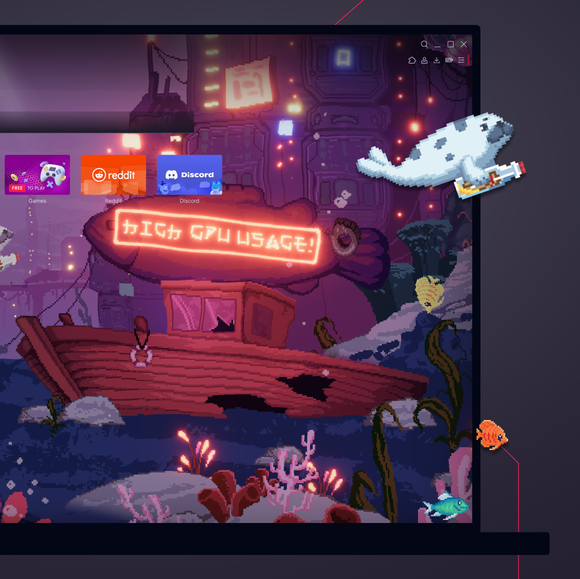
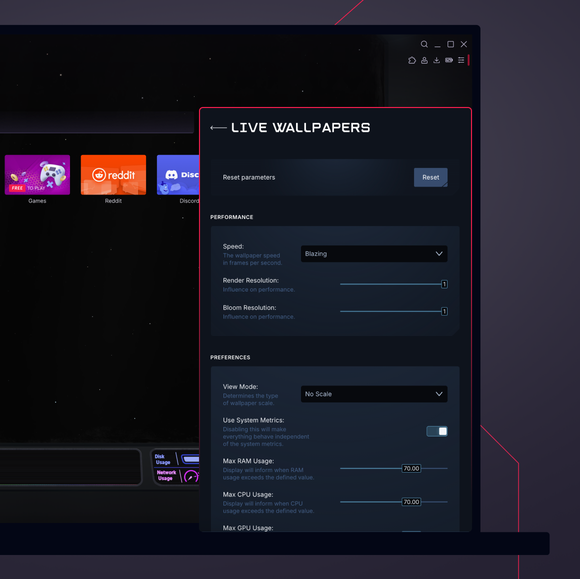

단조로움은 버리세요. 데스크톱에 생기를 불어넣으세요.
Opera GX에서 배경화면은 어떻게 변경하나요?
To change wallpapers in Opera GX, open the browser and go to the Easy Setup menu in the top-right corner. Scroll down to the Wallpapers section and select Custom to browse through the available options. Select the one you like, and your browser background will instantly update with your chosen wallpaper.
Opera GX에서 애니메이션 배경화면은 어떻게 얻나요?
To get animated wallpapers in Opera GX, head to the Easy Setup menu, toggle on Wallpapers, and select Custom. Select the one that catches your eye, or hit Get more to browse the GX Store for more unique and free animated wallpapers from both Opera GX and GX users.
Opera GX에서 사용자 지정 배경 화면을 추가하려면 어떻게 하나요?
To add custom wallpapers to Opera GX, go to the Easy Setup menu and toggle on Wallpapers. From there, select Custom and click on the option to Add your wallpaper. You can then choose an image file from your computer to use as your new custom wallpaper.
Opera GX 배경화면은 어디에 저장되나요?
Opera GX wallpapers are stored within the browser itself. Custom wallpapers that you add are saved locally on your device, typically in your user files or downloads folder. The exact location may vary based on your operating system and where you originally saved the image file. If you're looking for Live Wallpapers, you can browse and download them directly from the GX.Store under Mods > Live Wallpaper.
Opera GX 브라우저에 어떤 다른 모드를 추가할 수 있나요?
모드된 GX 배경화면 외에도 GX 브라우저에 추가할 수 있는 다양한 모드가 있습니다. GX 팀과 GX 커뮤니티 전반에서 매일 더 많은 모드를 추가하고 있습니다:
더 좋은 브라우저를 사용할 권리가 있습니다