Знімок в Opera GX
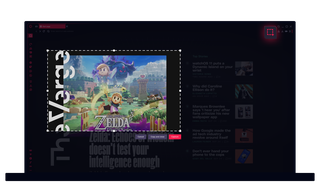
Знімок в Opera GX
Знімайте, редагуйте та діліться скріншотами з легкістю прямо в Opera GX.
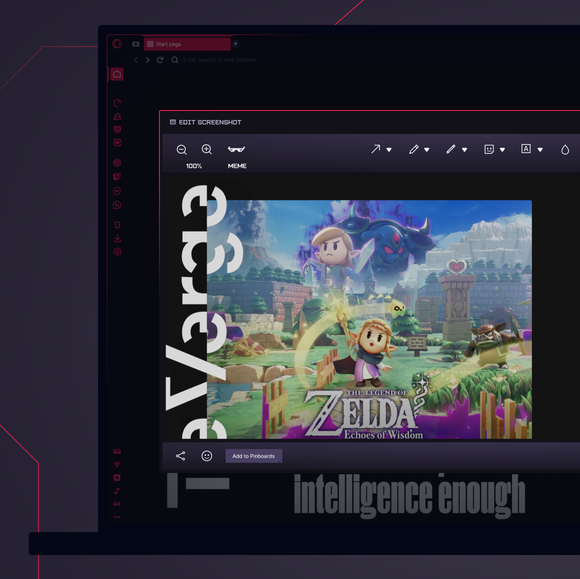
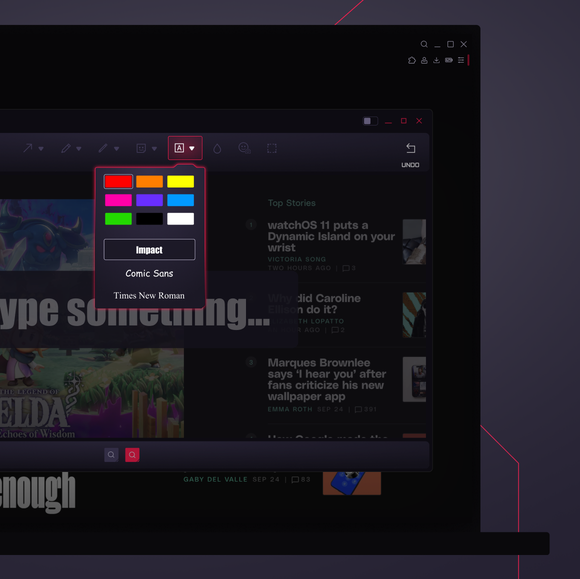
Отримайте максимум від Знімків
Як зробити знімок екрана в Opera GX?
Щоб зробити знімок екрана в Opera GX, просто натисніть комбінацію клавіш Ctrl+Shift+5(Command+Shift+2 на Mac) або торкніться іконки Знімок на панелі інструментів, щоб запустити Знімок. Виділіть і обріжте частину екрана, яку хочете захопити. Миттєво редагуйте за допомогою малюнків або тексту, а потім зберігайте або діліться. Розширення не потрібні.
Як зробити повноекранний знімок екрана?
Відкривши інструмент "Знімок" в Opera GX, знайдіть опцію захоплення видимої сторінки. Це дозволить захопити весь екран, нічого не залишиться поза увагою. Після того, як знімок буде зроблено, ви зможете обрізати його, додати примітки та поділитися ним за лічені секунди.
Як швидко поділитися або зберегти знімок екрана
У браузері Opera GX натисніть комбінацію клавіш Ctrl+Shift+5(Command+Shift+2 на Mac), щоб відкрити Знімок. Коли ви зробите знімок екрана і виберете "Зробити знімок", з'явиться попередній перегляд знімка екрана з кнопкою " Зберегти " в нижньому правому куті і кнопкою " Поділитися " в нижньому лівому куті.
Ви заслуговуєте на кращий браузер