Opera Air

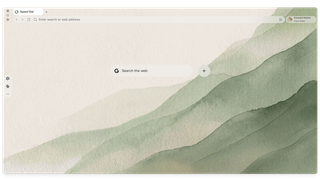
隆重推出全球首款以正念为核心的浏览器。体验更专注、更平衡、更轻松的网络世界。 了解更多
Opera Air Opera Air

首个浏览器正念 从本质上说

休息一下

通过各种时长不等的引导式练习,让身心得到放松。选择温和或强烈的提醒,促使您适时休息。

智能锻炼

通过这些能提升柔韧性的平衡练习,重新与身体建立联系。打开相机,即可查看实时引导您的3D模型。

引导冥想

停下脚步,深呼吸,重新回归当下。无论何时需要,独特的嗓音都将引领你进入属于自己的宁静祥和之境。

增强

通过双耳节拍和声音刺激产生不同的脑波,从而激发创造力、缓解压力、保持专注,以及带来更多益处。

放松一下,与 Opera Air

Play video

更多精彩功能 Opera Air

Opera AI

在您的智能浏览器中体验人工智能。尽享智能AI聊天、即时摘要、图片生成和语音输出功能。无需注册。

Air UI

借助 Air 的自适应界面,营造一个令人放松的环境。它通透简洁,能与您的壁纸和主题完美融合。

广告拦截器

摆脱干扰,减轻压力。Opera Air 内置广告拦截器,助您享受快速、专注且无干扰的浏览体验。

免费VPN

借助内置的安全VPN,让您高枕无忧,并保护您的在线隐私。无需繁琐操作——随时随地享受快速、可靠的保护。

恢复平衡 Opera Air

制作花絮 Opera Air

带您一探《Opera Air》的幕后制作过程,该作品的灵感源自关于大脑如何达到平静与专注状态的科学原理。

Play video

有疑问或反馈吗?

欢迎访问我们的论坛畅所欲言。您的意见将帮助我们打造一个更宁静、更专注的网络环境。访问论坛


需要心理帮助吗?
查找您所在

国家/地区值得信赖的心理健康资源。

無法儲存您的訂閱。請再試一次。
Your subscription has been successful.

* 为必填信息 | Privacy Policy

Opera Air 常见问题解答

What is Opera Air?

Opera Air is a brand new browser with mindfulness at its core, that meets the needs of our busy lives by reducing distractions and helping you focus. It integrates features that support relaxation and well-being, such as meditation and breathing practices, binaural beats, and neck stretches.

Developed with tried and true methods, Opera Air creates an environment that helps boost productivity and creativity while promoting mental health and creating a calmer, more focused browsing experience.

What is Opera Air’s mission?

Opera Air’s mission is to help people feel better by turning everyday browsing into a powerful tool for stress relief and improved focus.

Is Opera Air free?

Yes, Opera Air is completely free to download and use.

Does Opera Air have AI?

Yes, Opera Air comes with built-in Opera AI, a fast, context-aware assistant that enhances your browsing without adding extra steps. It can pull real-time information from the web, summarize pages and YouTube videos, analyze files and screenshots, and generate high-quality images right inside your browser, all without requiring an account and for free.

You can open it instantly from the Ask AI button or with Ctrl+O / Cmd+O, use voice input or listen to spoken answers, and choose exactly when it can access the content of your tabs.

Does Opera Air include an ad blocker?

Yes, Opera Air features a built-in Ad Blocker for fast and focused browsing, helping eliminate distractions and minimize stress. To activate the free Ad Blocker, just click on Easy Setup to the right of the address bar, and toggle on Block ads

Does Opera Air include a VPN?

Yes, Opera Air includes a secure, built-in Free VPN for fast, reliable privacy protection with no hassle. The VPN icon in the address bar is hidden by default when it's not enabled. To enable it, simply go to Settings (Alt+P), search for VPN and toggle it on. Once enabled, you can enjoy enhanced privacy while browsing without any interruptions, completely free.

What tab features are included in Opera Air?

Opera Air has built-in tab features that let you organize your browsing and focus in a minimalist space.

Workspaces allows you to group related tabs by context in separate spaces: work, personal, travel, gaming - whatever you customize.

Search in tabs makes it easy to find any tab you need quickly with Ctrl+Space. You can browse your open tabs, search tab content by keyword, and even see recently closed tabs.

How do I set up and customize wallpapers in Opera Air?

Click the icon to the right of the address bar. This will take you to Easy Setup, a panel which includes wallpaper and other UI settings. There you can select one of the preset animated or static Opera Air wallpapers, add your own, or choose not to show a wallpaper at all.

You can also right-click on your current wallpaper, and select Change wallpaper.

How do I customize and share quotes?

Daily inspirational quotes appear at the bottom of your start page. When you hover your cursor over the quote, options will appear to the right.

Click the share icon to customize the and share the presented quote, or save it in an image.

Click the three-dot icon to shuffle to new quotes or to hide them on your start page.

How do I use the Take a Break feature?

Taking breaks throughout the day is a great way to increase productivity, improve focus and minimize stress. The Take a Break feature is available in the sidebar and provides exercises you can perform throughout the day, including Breathing Exercises, Guided Meditations, Neck Stretching and Full Body. Each exercise offers multiple variations in duration and style, depending on what you want to achieve, as well as different voice guides. You can also customize the subtitles, ambient sounds and music.

To access these features, make sure they’re enabled and visible in the sidebar. If these features are not visible, click the three-dot icon at the bottom of the sidebar and select the features, or enable them in Settings (Alt+P). If the sidebar itself is not visible, you can turn it on in Easy Setup to the right of your address bar.

You can also open the Take a Break feature anytime with the Cmd+K/Ctrl+K shortcut, and the Boosts feature with the Cmd+B/Ctrl+B shortcut.

If you choose, the Take a Break feature can send you gentle reminders to take breaks, helping you stay on track. When it’s time, the Take a Break icon in the sidebar gently blinks. You can customize the frequency of your breaks in the feature’s settings .

Why does the Neck Exercise require access to my computer camera?

The Neck Exercise uses your computer's camera to scan your face, so it can track your movements to ensure they are performed safely and correctly. However, Neck Exercises can still be performed without your computer camera.

How do I use the Guided Meditations in Opera Air?

Guided Meditation exercises can be found in the Take a Break feature, available in the sidebar. When you click the Take a Break icon , various exercises will be presented. Select Meditation and choose your preferred duration and voice guide. Depending on the duration you select, you will be guided through meditation practices designed to improve your well-being, and prepare you for the day ahead.

Once you begin a Meditation exercise, you can toggle the sound on and off, as well as select different background music and ambient sounds by clicking on the settings icon .

How do I use the Breathing exercises in Opera Air?

To use the Breathing exercises, click the Take a Break icon in Opera Air’s sidebar. A menu will appear with various exercises. Select Breathing, and choose your preferred type of breathing exercise and voice guide based on your available time and preferences.


Opera Air offers various techniques, from the simple 4-6 method (inhale for 4 seconds, exhale for 6) to the Box Breathing (4-4-4-4) and the more advanced 4-7-8 technique. If you're new to breathing exercises, we recommend starting with the 4-6 method.


During your breathing exercise, you can toggle the sound on and off, as well as select different background music and ambient sounds by clicking on the settings icon .

How do I use the Full Body Scan exercises in Opera Air?

The Full Body Scan exercises are available in the Take a Break feature in the sidebar. Click the Take a Break icon , and a menu with various exercise options will appear. Select Full Body Scan, then choose your preferred voice guide and exercise type based on your time and preferences.

The exercise types vary in duration and style, allowing you to select an exercise that suits your goals. You can opt for a quick scan to boost your body awareness, or choose a deeper, more comprehensive scan for enhanced mind-body connection and profound relaxation. The choice is yours.

During your Body Scan exercise, you can toggle the sound on and off, as well as select different background music and ambient sounds by clicking on the settings icon .

What is the Boosts feature in Opera Air, and how do I use it?

Boosts are auditory experiences that stimulate different brain waves. Boosts are scientifically-designed to help you achieve specific states like focus, relaxation, or creativity through a combination of binaural beats, music, and ambient sounds.

To use the Boost feature, click the Boosts icon in the sidebar. A window will pop up with various Boost options. You’ll first see the Top and Recently Played Boosts, with an option to view your Favorites, once you’ve selected them. Scroll down to explore the full list of available Boosts.

You can individually adjust the volume for binaural beats, ambient sounds, and music to suit your preferences. Additionally, you can set the duration of the sound, choosing anywhere from 30 minutes to a continuous loop.

How do I give feedback on the Opera Air browser?

To give feedback on the Opera Air browser, you can click the feedback button in the bottom-right corner of your start page, or visit the Opera Forums. You can also give feedback within the Take a Break and Boosts features, by clicking the smiley face.

In each feedback method, you can select thumbs-up or thumbs-down, as well as leave a detailed comment. Thank you for your feedback and rating, as it helps us improve the Opera Air browser and update it to meet your needs.

Show more
Show less

帮助我们共建一个有意识的网络

立即参与 Opera Air 的抢先体验,借助这款功能强大且无干扰的浏览器,通过有益的休息时间、舒缓的背景音乐等元素,彻底改变您的上网体验。加入我们,共同打造一个能促进内心平静、专注与平衡的网络世界。
帮助我们共建一个有意识的网络 帮助我们共建一个有意识的网络

本页面由AI翻译。 如果您发现任何错误,请在 forums.opera.com 报告以帮助我们改进。
如有差异,以英文版本为准。