Opera Air
O primeiro navegador com atenção plena no fundo
Faz uma pausa
Recarrega a tua mente com uma variedade de exercícios guiados, curtos ou longos. Escolhe um lembrete suave ou mais intenso para te incentivar a fazer uma pausa.
Exercícios inteligentes
Reconecta-te com o teu corpo através de exercícios equilibrados que melhoram a tua flexibilidade. Abre a tua câmara para veres um modelo 3D que te orienta em tempo real.
Meditação Guiada
Faz uma pausa, respira e reconecta-te com o presente. Vozes únicas vão guiar-te até um espaço tranquilo e reconfortante só teu, sempre que precisares.
Potencia
Estimula diferentes ondas cerebrais através de batidas binaurais e sons para aumentar a criatividade, aliviar o stress, manter a concentração e muito mais.
Respira fundo com Opera Air
Mais funcionalidades fantásticas em Opera Air
Opera AI
Conhece a IA no teu navegador inteligente. Desfruta de conversas inteligentes com IA, resumos instantâneos, geração de imagens e saída de voz. Não é necessário registar-se.
Air UI
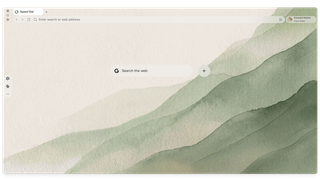
Cria um ambiente relaxante com a interface adaptativa do Air. É transparente, minimalista e adapta-se aos teus papéis de parede e temas.
Bloqueador de anúncios
Livra-te das distrações e minimiza o stress. O Opera Air vem com um bloqueador de anúncios integrado para uma navegação rápida, concentrada e sem interrupções.
VPN gratuita
Fica tranquilo e protege a tua privacidade online com uma VPN integrada e segura. Sem complicações — apenas proteção rápida e fiável a qualquer momento.
Recupera o equilíbrio com Opera Air
Os bastidores Opera Air
Dá uma espreitadela nos bastidores da criação do Opera Air, inspirado na ciência que explica como o nosso cérebro alcança a calma e a concentração.
Tens perguntas ou comentários?
Visita o nosso fórum e diz o que pensas. A tua opinião ajuda-nos a criar uma Internet mais tranquila e focada. Visita o
fórum. Precisas de ajuda psicológica?
Encontra recursos de saúde mental de confiança no teu país.
Opera Air Perguntas frequentes
What is Opera Air?
Opera Air is a brand new browser with mindfulness at its core, that meets the needs of our busy lives by reducing distractions and helping you focus. It integrates features that support relaxation and well-being, such as meditation and breathing practices, binaural beats, and neck stretches.
Developed with tried and true methods, Opera Air creates an environment that helps boost productivity and creativity while promoting mental health and creating a calmer, more focused browsing experience.
What is Opera Air’s mission?
Opera Air’s mission is to help people feel better by turning everyday browsing into a powerful tool for stress relief and improved focus.
Is Opera Air free?
Yes, Opera Air is completely free to download and use.
Does Opera Air have AI?
Yes, Opera Air comes with built-in Opera AI, a fast, context-aware assistant that enhances your browsing without adding extra steps. It can pull real-time information from the web, summarize pages and YouTube videos, analyze files and screenshots, and generate high-quality images right inside your browser, all without requiring an account and for free.
You can open it instantly from the Ask AI button or with Ctrl+O / Cmd+O, use voice input or listen to spoken answers, and choose exactly when it can access the content of your tabs.
Does Opera Air include an ad blocker?
Yes, Opera Air features a built-in Ad Blocker for fast and focused browsing, helping eliminate distractions and minimize stress. To activate the free Ad Blocker, just click on Easy Setup to the right of the address bar, and toggle on Block ads
Does Opera Air include a VPN?
Yes, Opera Air includes a secure, built-in Free VPN for fast, reliable privacy protection with no hassle. The VPN icon in the address bar is hidden by default when it's not enabled. To enable it, simply go to Settings (Alt+P), search for VPN and toggle it on. Once enabled, you can enjoy enhanced privacy while browsing without any interruptions, completely free.
What tab features are included in Opera Air?
Opera Air has built-in tab features that let you organize your browsing and focus in a minimalist space.
Workspaces allows you to group related tabs by context in separate spaces: work, personal, travel, gaming - whatever you customize.
Search in tabs makes it easy to find any tab you need quickly with Ctrl+Space. You can browse your open tabs, search tab content by keyword, and even see recently closed tabs.
How do I set up and customize wallpapers in Opera Air?
Click the icon to the right of the address bar. This will take you to Easy Setup, a panel which includes wallpaper and other UI settings. There you can select one of the preset animated or static Opera Air wallpapers, add your own, or choose not to show a wallpaper at all.
You can also right-click on your current wallpaper, and select Change wallpaper.
How do I customize and share quotes?
Daily inspirational quotes appear at the bottom of your start page. When you hover your cursor over the quote, options will appear to the right.
Click the share icon to customize the and share the presented quote, or save it in an image.
Click the three-dot icon to shuffle to new quotes or to hide them on your start page.
How do I use the Take a Break feature?
Taking breaks throughout the day is a great way to increase productivity, improve focus and minimize stress. The Take a Break feature is available in the sidebar and provides exercises you can perform throughout the day, including Breathing Exercises, Guided Meditations, Neck Stretching and Full Body. Each exercise offers multiple variations in duration and style, depending on what you want to achieve, as well as different voice guides. You can also customize the subtitles, ambient sounds and music.
To access these features, make sure they’re enabled and visible in the sidebar. If these features are not visible, click the three-dot icon at the bottom of the sidebar and select the features, or enable them in Settings (Alt+P). If the sidebar itself is not visible, you can turn it on in Easy Setup to the right of your address bar.
You can also open the Take a Break feature anytime with the Cmd+K/Ctrl+K shortcut, and the Boosts feature with the Cmd+B/Ctrl+B shortcut.
If you choose, the Take a Break feature can send you gentle reminders to take breaks, helping you stay on track. When it’s time, the Take a Break icon in the sidebar gently blinks. You can customize the frequency of your breaks in the feature’s settings .
Why does the Neck Exercise require access to my computer camera?
The Neck Exercise uses your computer's camera to scan your face, so it can track your movements to ensure they are performed safely and correctly. However, Neck Exercises can still be performed without your computer camera.
How do I use the Guided Meditations in Opera Air?
Guided Meditation exercises can be found in the Take a Break feature, available in the sidebar. When you click the Take a Break icon , various exercises will be presented. Select Meditation and choose your preferred duration and voice guide. Depending on the duration you select, you will be guided through meditation practices designed to improve your well-being, and prepare you for the day ahead.
Once you begin a Meditation exercise, you can toggle the sound on and off, as well as select different background music and ambient sounds by clicking on the settings icon .
How do I use the Breathing exercises in Opera Air?
To use the Breathing exercises, click the Take a Break icon in Opera Air’s sidebar. A menu will appear with various exercises. Select Breathing, and choose your preferred type of breathing exercise and voice guide based on your available time and preferences.
Opera Air offers various techniques, from the simple 4-6 method (inhale for 4 seconds, exhale for 6) to the Box Breathing (4-4-4-4) and the more advanced 4-7-8 technique. If you're new to breathing exercises, we recommend starting with the 4-6 method.
During your breathing exercise, you can toggle the sound on and off, as well as select different background music and ambient sounds by clicking on the settings icon .
How do I use the Full Body Scan exercises in Opera Air?
The Full Body Scan exercises are available in the Take a Break feature in the sidebar. Click the Take a Break icon , and a menu with various exercise options will appear. Select Full Body Scan, then choose your preferred voice guide and exercise type based on your time and preferences.
The exercise types vary in duration and style, allowing you to select an exercise that suits your goals. You can opt for a quick scan to boost your body awareness, or choose a deeper, more comprehensive scan for enhanced mind-body connection and profound relaxation. The choice is yours.
During your Body Scan exercise, you can toggle the sound on and off, as well as select different background music and ambient sounds by clicking on the settings icon .
What is the Boosts feature in Opera Air, and how do I use it?
Boosts are auditory experiences that stimulate different brain waves. Boosts are scientifically-designed to help you achieve specific states like focus, relaxation, or creativity through a combination of binaural beats, music, and ambient sounds.
To use the Boost feature, click the Boosts icon in the sidebar. A window will pop up with various Boost options. You’ll first see the Top and Recently Played Boosts, with an option to view your Favorites, once you’ve selected them. Scroll down to explore the full list of available Boosts.
You can individually adjust the volume for binaural beats, ambient sounds, and music to suit your preferences. Additionally, you can set the duration of the sound, choosing anywhere from 30 minutes to a continuous loop.
How do I give feedback on the Opera Air browser?
To give feedback on the Opera Air browser, you can click the feedback button in the bottom-right corner of your start page, or visit the Opera Forums. You can also give feedback within the Take a Break and Boosts features, by clicking the smiley face.
In each feedback method, you can select thumbs-up or thumbs-down, as well as leave a detailed comment. Thank you for your feedback and rating, as it helps us improve the Opera Air browser and update it to meet your needs.
Ajuda-nos a construir uma Internet consciente