Browsers for the real you
Download free Opera browsers for computer, mobile, gaming, and data saving. Discover web browsers for everything you do on every device, connected and customizable.
See more
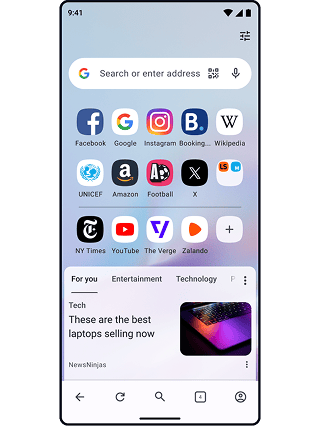

Innovative browsers
Create tab groups, chat with AI, use integrated messengers and more, in a browser that’s perfectly tailored to your needs.

Browsing reinvented
About Opera
Browsing reinvented
Browsing reinvented
Speed, security and innovative features, Opera delivers real solutions for the way you use the internet.

Millions of people worldwide choose Opera browsers
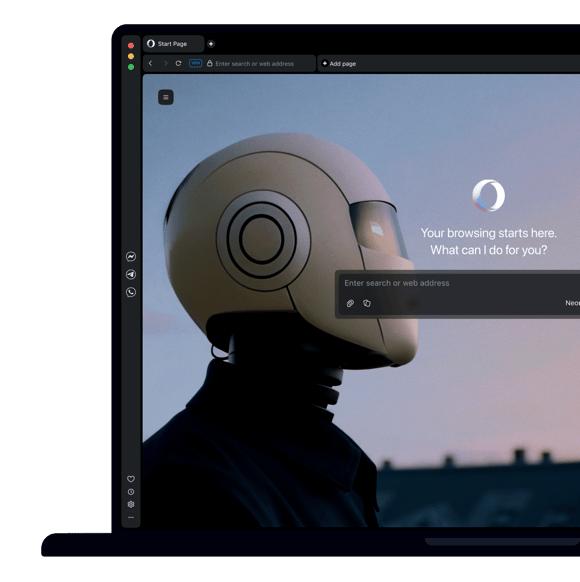
Opera desktop browsers
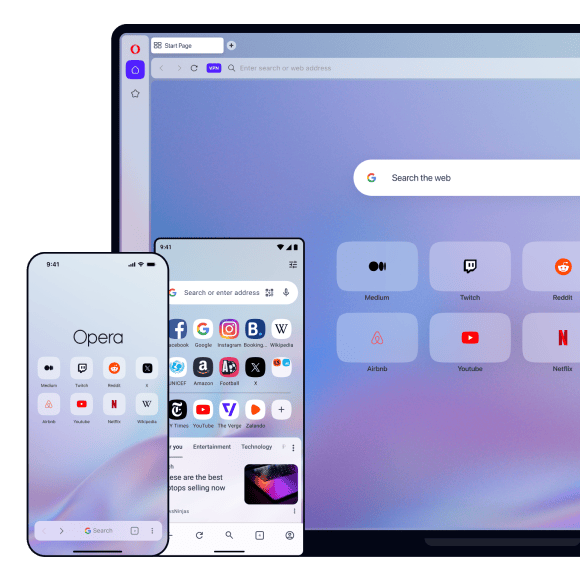
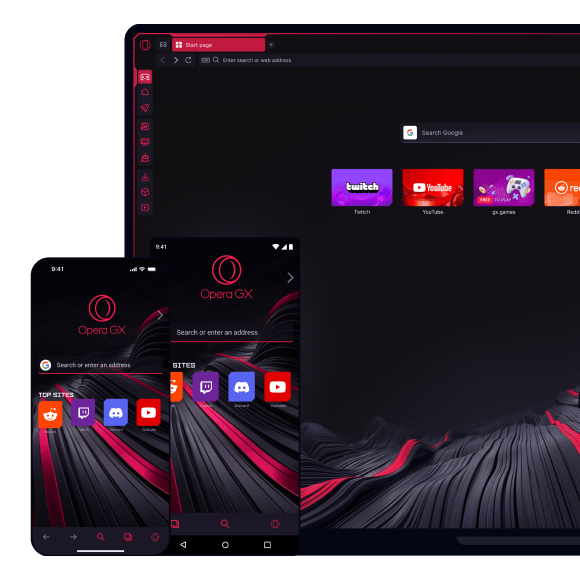
Opera has different desktop browsers for your devices and preferences. Download the Opera GX desktop browser for gamers, the Opera browser for Chromebook, or the Opera desktop browser for your everyday browsing.
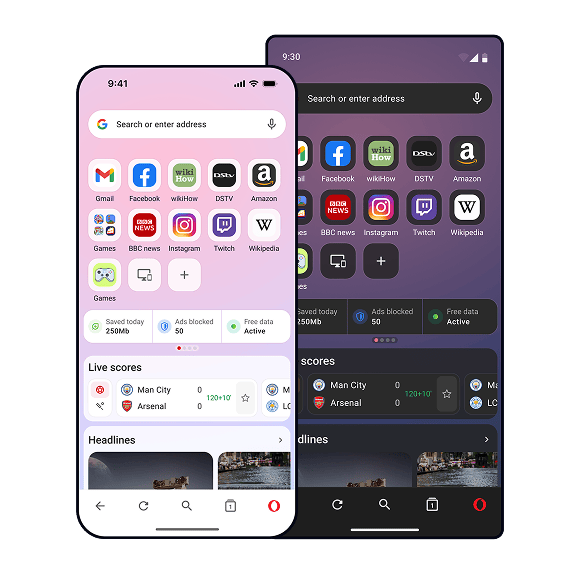
Opera mobile browsers
Opera also delivers mobile browsers for your on-the-go devices. Download the Opera mobile browser for iOS and Android, the Opera GX mobile browser for gamers, or the lightweight data-saving Opera Mini browser for Android.
Browse the web longer
Opera browsers use less resources than Google Chrome, Edge, Firefox or Safari. Plus you get Battery Saver, Ad Blocker, and more features that optimize background processes.
Keep your secrets safe
Protect your privacy with Opera’s Free VPN. Clear browsing history, browse the internet without revealing sensitive data, and automatically block tracking scripts on each page.
Get the latest features first
Opera browsers bring you innovative features with frequent updates to ensure you have the newest and best tools available in any web browser.
Pin it all
Each new tab can be pinned to the tab bar. Put an end to self-closing tabs, and keep all your web pages organized the way you want in your personalized web browser.
Share content instantly
Edit browser screenshots with Snapshot, send ideas visually with Pinboards, and share everything through built-in messengers and social media.
Personalize the Opera browser more
Make Opera browsers truly yours with extensive options in settings, over 2,500 browser extensions from the Opera addons catalog, and Chrome extensions as well.
Do it all in one browser
Stay in touch with friends without switching apps. Features like built-in messengers can be pinned for quick and ready access in your web browser.
Get Opera on all your devices
Download Opera browsers for every operating system - Windows, Linux, macOS, Android, iOS, and Chrome OS. Then share and sync data between web browsers on different operating systems easily.
Enjoy cleaner web browsers
Browse the internet free of popups, organize your tabs in contextual workspaces, and find the best place for tabs & bookmarks in your web browser.
Choose your search engine
Set any browser search engine as default - be it Google, Bing, Yandex, Search Encrypt, DuckDuckGo, or any other you prefer for your web browsing.
You deserve a better browser
Opera's free VPN, Ad blocker, and Flow file sharing. Just a few of the must-have features built into Opera for faster, smoother and distraction-free browsing designed to improve your online experience.